|
|
This simple app allows you to monitor and control your GivEnergy inverters (AC-coupled, Hybrid and All-in-One), although only the monitoring features should be used if you have multiple inverters controlled by an EMS or Gateway. It operates purely locally, via your home network, so has no dependency on GivEnergy's cloud servers (although it may be possible to configure it to work when away from home).
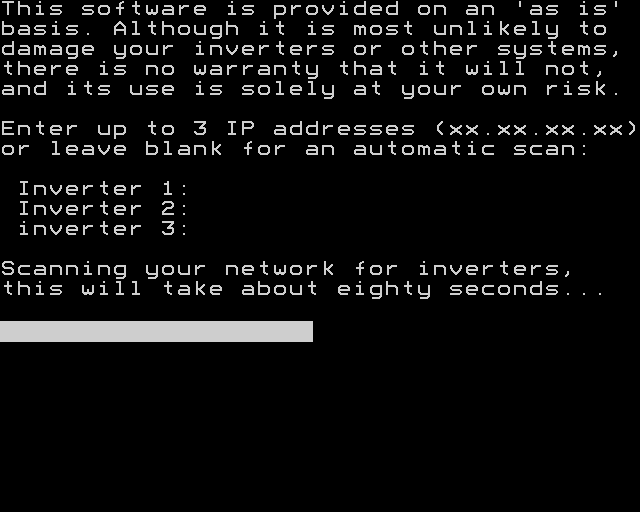
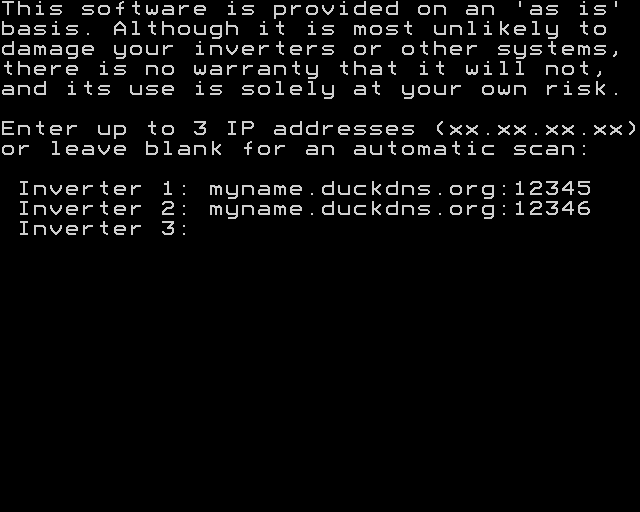
The app supports up to three inverters, although they are treated as being entirely independent (as they would be for example in a 3-phase installation with one inverter per phase). If you have multiple inverters configured as a 'plant' (operating together on the same phase) the app will work but the 'home demand' will be reported incorrectly. When first run, the app prompts for the IP address(es) of your inverter(s); if they are left blank it will automatically scan your local network for GivEnergy inverters (note that this feature does not work in early versions of iOS, nor does it work when the Android version of the app is run on a Chromebook, and it may not be reliable if you have a larger than usual subnet such as with the Amazon Eero router). The app relies on the IP address(es) not subsequently changing, so you should configure your inverter(s) to have fixed or static addresses as described below. If necessary then force the app to request the address(es) again. If you have two or more inverters, and the connection to one fails, the app will attempt to reconnect – but only once, if that fails it will not try again. The app is entirely free and may be downloaded for the supported desktop and mobile platforms as follows:
* The macOS edition is a download for an x86 CPU, but will run on an 'Apple Silicon' Mac under Rosetta 2 emulation.
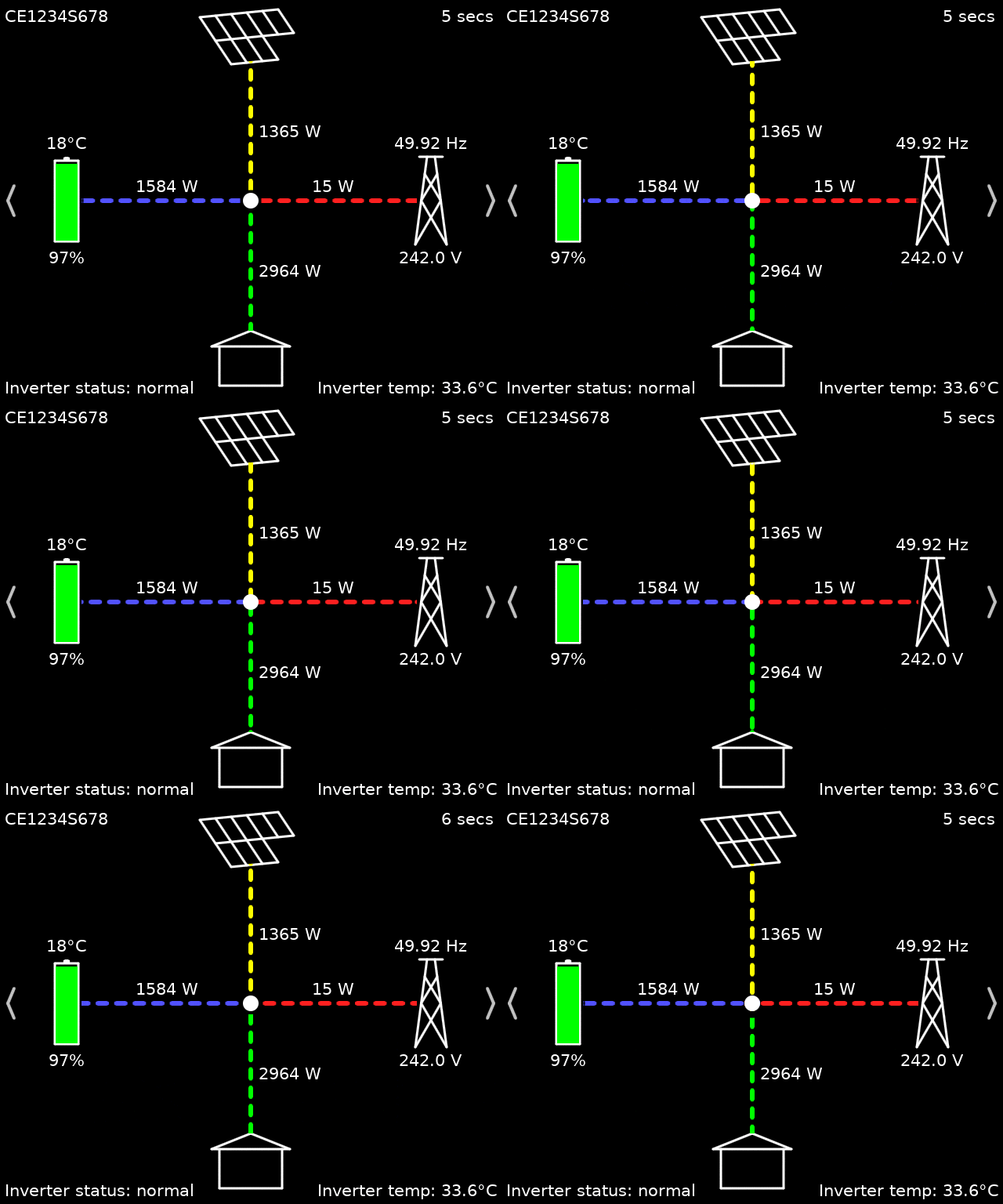
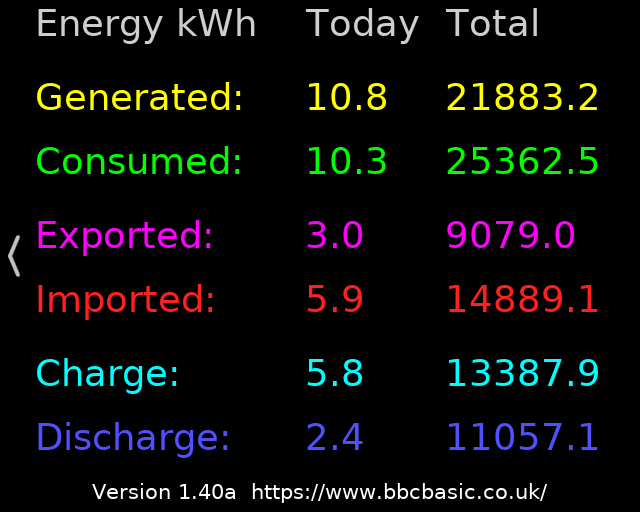
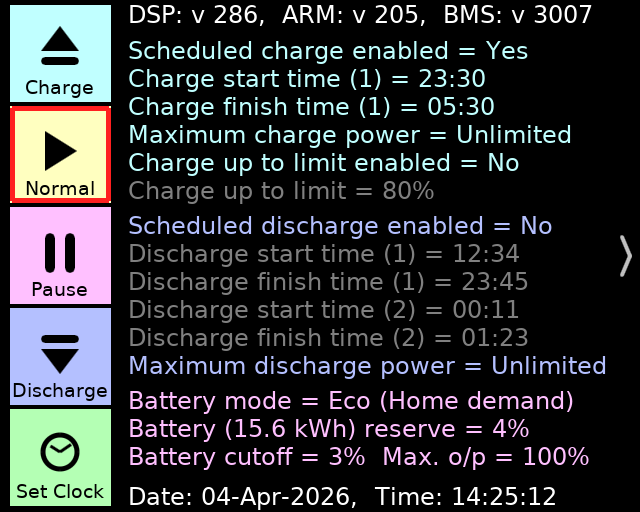
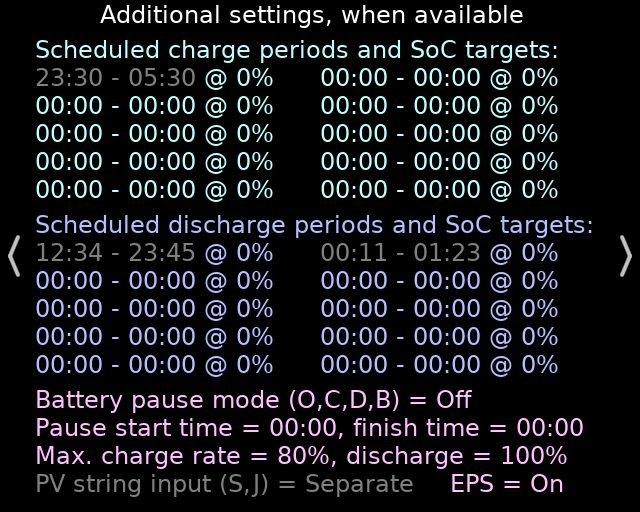
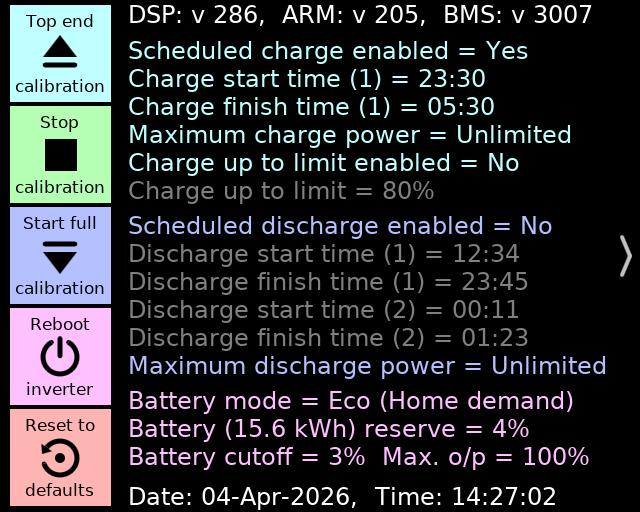
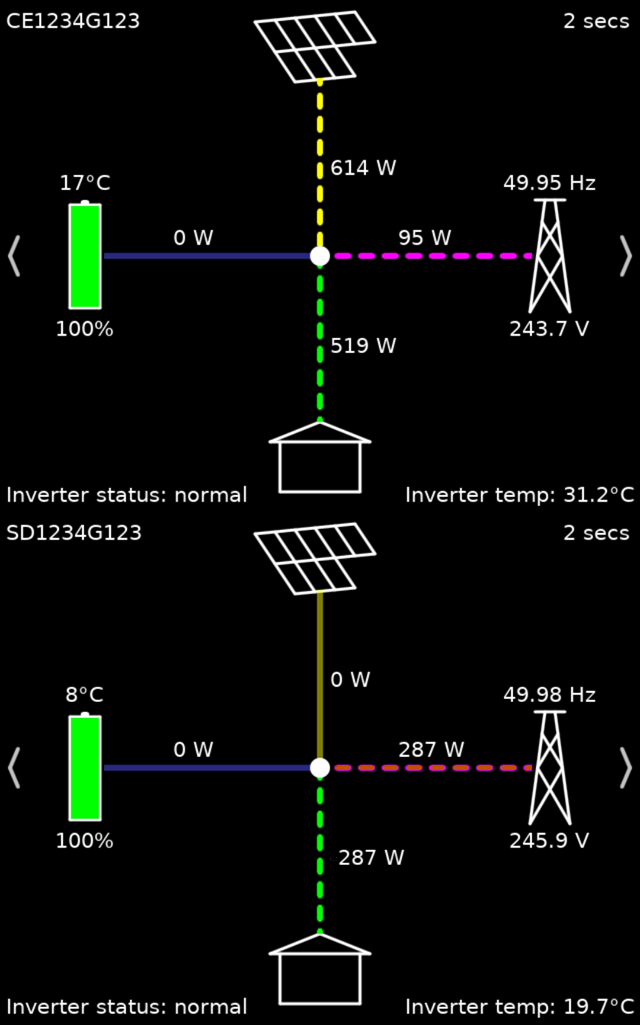
InterfaceThe app has a simple user interface consisting of a single large 'canvas' which can be scrolled both horizontally and vertically. Vertical scrolling allows you to select which of up to three inverters you want to monitor or control. Horizontal scrolling allows you to select between four different 'pages' as follows:Status pageThis is the page initially displayed (it is actually the third page counting from the left). It displays an animated graphic of the power output from your solar panels (if any), the power flowing into or out of your battery, the power being imported from or exported to the grid, and your home consumption (which includes the power used by the inverter itself). The powers always 'add up', that is they sum to zero at the central node.Note that the battery charge or discharge power is shown as the AC equivalent. When charging the DC power flowing into the battery will be somewhat less than the value shown, because of losses in the AC-to-DC conversion. Similarly when discharging the DC power flowing out of your battery will be somewhat more than the value shown, because of the loss in the DC-to-AC conversion. GivEnergy inverters are specified in terms of AC power, for example the AC3.0 can charge or discharge at 3.0 kW AC. This page also displays miscellaneous information such as your inverter's serial number, status and temperature; the battery's temperature and State of Charge; the mains (grid) frequency and the mains voltage. If you have multiple batteries the temperature and State of Charge are 'average' values. Energy Totals pageThis is the right-most page; it may be reached from the Status page by swiping left or clicking/tapping on the right-pointing chevron. It shows today's energy totals (since midnight) and the cumulative totals since the inverter was installed; only in the case of an AC-coupled inverter are all the fields populated. Also shown in this page is the version number of the app and a link to this page.Main Settings pageThis is the left-most page, it may be reached from the Status page by swiping right or clicking/tapping twice on the left-pointing chevron. It shows the main inverter settings — including charge and discharge schedules and battery settings — along with the firmware version numbers and the inverter's date and time. Also, on the left side, are five Quick Settings buttons.Settings may be changed (but you should not do this if you have multiple inverters controlled by an EMS or Gateway). To change a setting click on the current value; this will be cleared and replaced by an entry field with a flashing caret. Type in the wanted value and press Return / Enter; in the case of the Battery mode enter E for Eco (Home demand) or F for Full export. Entering U for the maximum charge or discharge power means Unlimited. Clicking or tapping on one of the Quick Settings buttons will switch the inverter to the requested state: Charge, Normal, Pause (which pauses both charge and discharge) or Discharge. It is most important that if you select a Quick Settings mode using this app you also return to Normal using this app. The Set Clock button sets the inverter's internal clock to the current time of the device on which you are running the app. Whenever you change a setting the header and footer will turn yellow to signify that the change has been accepted but not yet acknowledged by the inverter; you should not close the app until these have returned to white. In the unlikely event that you select a Quick Settings mode on one device, and return to Normal using the app running on a different device, schedules may be restored only with 5 or 10 minutes precision. Additional Settings pageThis is the second page from the left; it will populate only when the inverter firmware supports these settings. Note that the scheduled times for the first charge slot, and the first and second discharge slots, are copied from the Main Settings page and must be altered there if required. The SoC targets, and the start/finish times of the remaining slots, are only available on some inverter models; otherwise, attempts to change them will fail.The Battery pause mode should be set to O (Off), C (Charge only), D (Discharge only) or B (Both charge and discharge). Only certain inverter models support scheduled pause, on other models attempts to change the start or finish time will fail. The PV string input mode, when available, can be selected to S (Separate) or J (Joint). EPS enables (on) or disables (off) the Emergency Power Supply in the event of a power-cut, if you have that installed. The percentage maximum charge and discharge rates that you can set in this page act in conjunction with the Watts limit that you can set in the Main Settings page. The precise ways in which they interact may depend on the type of inverter, but in the case of some hybrid inverters the percentage limit affects only charging from the grid, whilst the Watts limit acts on both grid and solar charging. Expert ModeExpert mode is entered (and exited) by long-pressing on the Main Settings page just to the right of the Quick Settings buttons. In this mode the five buttons change from their normal functions to Top end calibration, Stop calibration, Start full calibration, Reboot inverter and Reset to defaults. Most of these are self-explanatory, but Top end calibration skips the battery discharge phase of a calibration and runs only the charge and cell balancing phases.Remote AccessThe IP addresses entered on the setup page don't have to be LAN addresses, they can be WAN addresses and port numbers (if you are lucky enough to have a static WAN address) or even a named domain such as one allocated by a Dynamic DNS provider, e.g. myname.duckdns.org:12345. Many routers have built-in support for a free DDNS such as DuckDNS or No-IP.Setting it up that way can enable remote ('away') access, although you will need to configure your router to allow incoming connections from the internet to your inverter(s), e.g. by port sharing. Always use a 'private' port number externally and translate that to the inverter's port 8899. Unfortunately this will not work if you have a CGNAT connection to the internet, as is often the case with mobile and satellite providers. Forcing the app to request the IP address(es) againIf the IP address of one or more of your inverters has changed, or for some other reason needs to be re-entered, you can force the app to request the addresses again by deleting the file which contains them as follows:
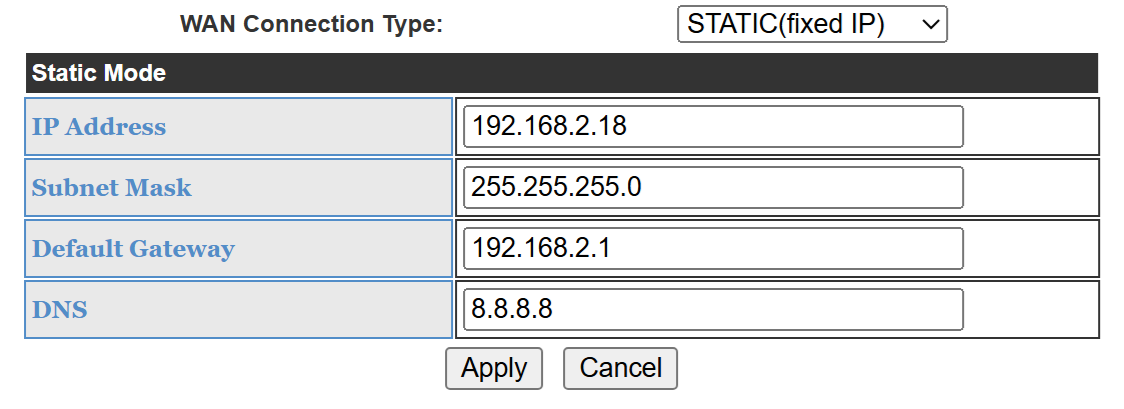
In the case of the desktop platforms enter the listed command at a command prompt, substituting your own user name for <user> as applicable. Setting the inverter's IP address to staticYou should set your inverter(s) to have a fixed/static IP address, either in your router's settings or in the GivEnergy dongle's settings. The router method is usually easier and safer: log into your router's admin interface, find your inverter in the list of connected devices (typically called 'HF-A21' or similar) and look for 'DHCP Reservation', 'Address Reservation', 'Static DHCP', 'IP Binding' or 'Manual Assignment'.Alternatively you can set a static address by logging into the GivEnergy dongle (or internal equivalent), either from your LAN or via the dongle's own WiFi hotspot. Go to STA Interface, select WAN Connection Type as STATIC (fixed IP) and fill in the form shown below. You must choose a 'safe' IP address: one that is not in the router's DHCP range and not in use by anything else. It will probably be necessary to force a reconnection for this to take effect.
Disclaimer"This software is provided on an 'as is' basis. Although it is most unlikely to damage your inverters or other systems, there is no warranty that it will not, and its use is solely at your own risk." |